RateTube.ru
 Канал:

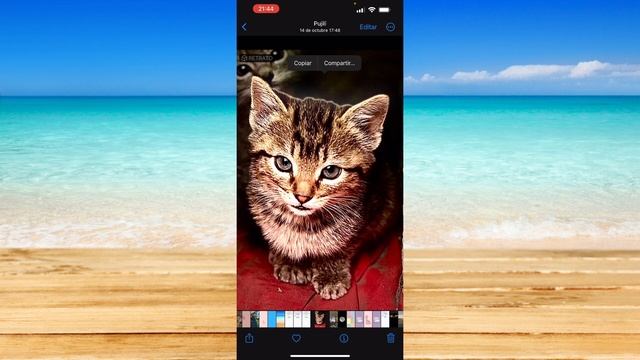
In this tutorial you will learn about Photoshop for iPhone.
Dont forget to check out our site for more free how-to videos!
- our feed
- join us on facebook
- our group in Google
This tutorial will show you Photoshop for iPhone a short review.
Photoshop allows you to edit your photos in depth and on the go.
It has all the powerful editing tools of the computer-based application.
Step 1 -- Download Photoshop Express App
Step 2 -- Open the app
Step 3 -- Tap Camera
The app will ask if you want to take a photo or select a photo from your library.
Tap Camera.
Step 4 -- Take photo
Tap the camera icon to take the photo you will be editing.
Step 5 -- Tap Pencil Icon
Tapping this icon will take you to the next page where you can edit your photo in depth.
Step 6 -- Enhance Photo
You can enhance the photos highlights and shadows by tapping the magic wand icon in the top left corner.
Step 7 -- Crop Photo
Tap the crop photo icon.
Use your fingers to highlight the part of the photo you want to keep.
Tap the check mark at the bottom right of the screen.
Step 8 -- Make Black White
Tap the circle icon and then tap Black White.
Step 9 -- Effects
Tap the 3 star icon and you can apply pre made effects to your photo.
You can get some good results using these effects.
Step 10 -- Choose Effect
Tap the effect you want to use on your photo.
Step 11 -- Share photo
To share your photo tap the arrow icon.
From here tap the email tab and you can send it to whomever you want!
Leave your comments below or contact us by email.
This was a Howtech.tv tutorial.
Thanks for watching!
Источник: rutube.ru
⇒Расскажите об этом видео Photoshop for iPhone and iPad Short Review, своим друзьям в социальных сетях.
Ссылка на страницу с видео:
HTML-ссылка на страницу с видео:
Код для вставки плеера:Как нарисовать динозавра карнотавра? смотрите #3 - онлайн
Заброшенный ДК им - Фото - онлайн
Голые и Смешные. Люстра с душем-Gagsn... - онлайн
отзыв магазин respect. настоятельно рекомендую НЕ покупать-Татьяна ...
ГЮЛЬПЕРИ 25 СЕРИЯ Сюжет, Русская озвучка, Дата выхода-Bay-Top-Way -...